Amazon infographic images: sizes, rules and what to put in the callouts
What size to export an Amazon infographic, which image slot it belongs in, the wording Amazon rejects, and how big the text has to be to survive a phone screen. Checked against Amazon’s own image and A+ guidelines.
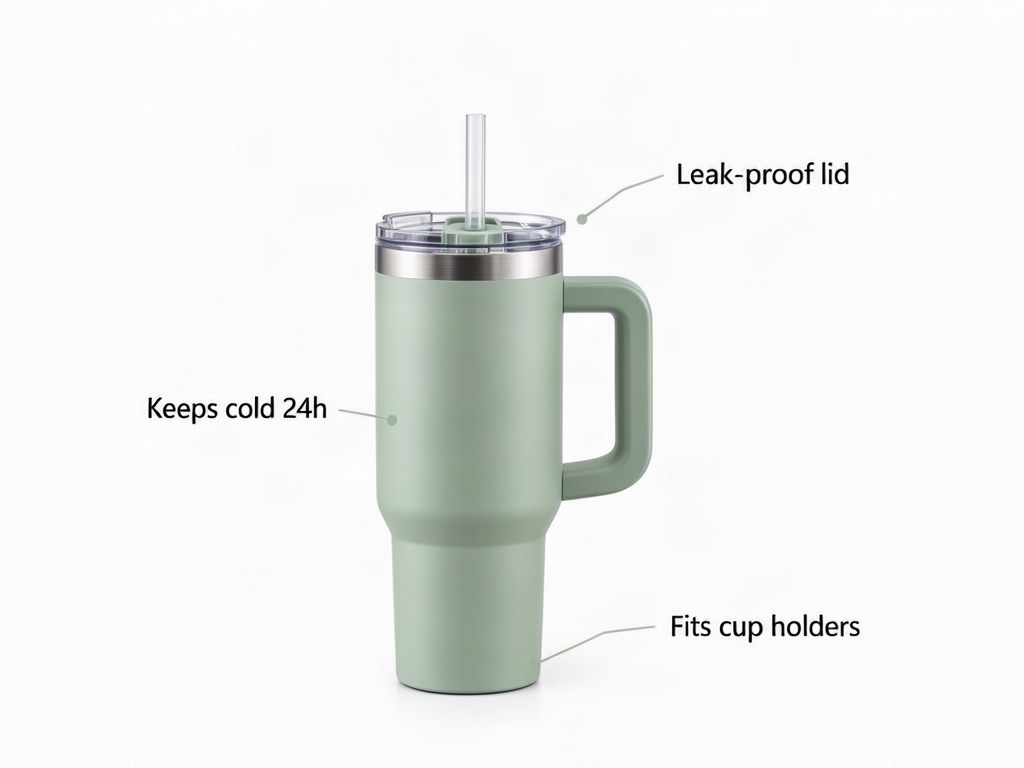
If you are asking what size to export an Amazon infographic, which slot it goes in, and what you are allowed to write on it, this page answers all three. It walks through Amazon's file rules, where infographic content is actually permitted, the specific wording that gets images rejected, and how to size callout text so it survives the shrink down to a phone screen. Every rule below is taken from Amazon's published product image requirements and A+ Content guidelines; the font-size numbers are our own working minimums, marked as such.
Key takeaways
- The main image stays pure product. Pure white background (RGB 255, 255, 255), no text, no badges, product filling 85% of the frame. Infographic content goes in the other gallery slots or in A+ Content.
- Amazon bans pricing, promotional language, superlatives, competitor mentions, QR codes, contact details and guarantee claims in A+ text and images; the same spirit applies to gallery infographics.
- File rules are simple: JPEG, PNG, TIFF or non-animated GIF for gallery images, longest side 500–10,000 px and 1,000 px or more to enable zoom; A+ images are JPG, BMP or PNG in RGB, under 2 MB, 72 dpi or more.
- Phones shrink your file about five times. A 2,000 px square shows at roughly 360–430 CSS pixels wide, so headline and callout type has to be built oversized from the start.
- Awards, certifications and environmental claims need a dated, named source in the text, or they get removed.
Amazon's image file requirements before you design anything
Gallery images
Amazon's product image requirements accept JPEG, TIFF, PNG and non-animated GIF, with JPEG recommended. The longest side must be at least 500 px and at most 10,000 px; images under 500 px cannot be uploaded, and Amazon asks you not to upscale small files. At 1,000 px or more on the longest side the listing gets the zoom feature, which is where infographic text is actually read, so 2,000 px square is the practical standard. Minimum resolution is 72 dpi and RGB is the preferred colour mode.
A+ Content images
A+ Content accepts JPG, BMP and PNG in RGB colour space only; CMYK is not supported and animated GIFs are rejected. Each file must be under 2 MB at 72 dpi or higher. Module sizes differ by tier: Basic A+ modules use images up to 970 × 300 px, Premium A+ modules up to 1,464 × 600 px, and Amazon resizes anything larger to the module limit. If your designer works in a print-oriented tool, double-check the export is flattened to RGB before upload, since a CMYK file saved with a .jpg extension will still fail.
Slot strategy: main image, gallery and A+ Content
Why slot 1 stays product-only
The main image, variant code MAIN, is what shoppers see in search results and at the top of the listing. Amazon requires a pure white background (RGB 255, 255, 255), the whole product shown once and filling 85% of the frame, no packaging unless it is a feature, no mannequins, and no placeholder text. Across all product images Amazon also prohibits customer reviews, star ratings, claims such as "free shipping", and any Amazon badge or trademark ("Amazon's Choice", "Best Seller", "Prime"). Treat slot 1 as the one image where the product itself has to do all the work.
Where infographic content is actually allowed
Infographic text, icons and callouts belong in the secondary gallery images (variant codes PT01–PT99) and in A+ Content modules below the description. The strategic job changes there: a plain photo shows what the product looks like, while an infographic can call out a detail a shopper would otherwise miss. A+ Content has its own overlap rule: Amazon's guidelines say A+ images and text must be unique to A+, so reusing a gallery image inside an A+ module is a rejection reason, not a shortcut. Amazon also recommends at least six images plus one video per product, so there is room for two or three infographics without crowding out photos.
Rules that get infographics rejected
Banned promotional and pricing language
Amazon's A+ Content guidelines say not to include pricing, promotional details or discounts anywhere in text or imagery. That rules out words like "affordable", "bonus" and "free", along with purchase directives such as "buy now" or "add to cart", and time-sensitive wording like "new", "latest" or "on sale now". If a callout reads like an ad banner instead of a product fact, rewrite it.
Claims that need proof versus claims that are never allowed
Some claims are never allowed: satisfaction claims ("100% satisfaction guaranteed"), boasts such as "top-rated", guarantee or off-Amazon refund information, and any claim to cure, mitigate, treat or prevent disease in humans or animals.
Other claims are allowed only with a note in the text. Awards and endorsements need the date achieved and the awarding organisation, and Amazon says not to mention awards received more than two years ago. Certification wording ("certified", "tested", "approved", "validated") must name the certifying body, study or publication and the year. Recyclability claims need the same kind of supporting detail, while the terms "eco-friendly", "biodegradable" and "compostable", including their symbols, are not allowed at all. The practical rule: if you cannot attach a date and a named authority to a claim, leave it off the image.
Competitor mentions, QR codes and off-Amazon contact info
A+ Content may not reference or compare products with competitors. QR codes, phone numbers, addresses, email addresses, hyperlinks and language directing shoppers elsewhere are banned, and so are shipping details. If your brief includes a "scan to see our full catalogue" callout, drop it before design starts, not after rejection.
What callouts are for and what to put in them
Translating product features into short benefit statements
A callout exists to flag a detail a shopper would miss in a plain photo: material, dimensions, what is included in the box, or a construction detail that is not visible at a glance. The useful move is translating a feature into an outcome the shopper cares about rather than restating a spec. "Double-wall vacuum insulation" is a feature; "stays hot for hours" is the outcome a buyer actually wants, assuming your own testing supports the claim. If you are building an included-items view, keep it literal: show only the cable, case or adapter that ships with that exact variation, and do not stage a prop that implies something is included when it is not. Amazon's main-image rules make the same point for slot 1: no accessories or props that are not in the box.
Limiting callout count so text stays readable on a phone
The number of callouts you can fit is a design constraint, not a content ambition. Every extra line of text competes for the same shrinking pixel budget once the image lands on a phone screen, so the practical approach is picking the two or three details that matter most to a purchase decision and cutting the rest, even if they are true and relevant. A crowded infographic with six callouts usually reads worse on mobile than one with two.
Font size and legibility: the arithmetic
A phone shopper sees a dramatically smaller version of the file you uploaded, and that size drop is the real constraint behind every font-size rule for Amazon infographics. Amazon's guidelines only say that text must be readable on mobile and that small, hard-to-read text is a rejection reason; they publish no minimum font size. The numbers below are our working minimums.
How a 2,000 px file shrinks on a phone. In portrait mode the image carousel is as wide as the screen, and common phone viewports are 360 to 430 CSS pixels wide. Take the low end: 360 ÷ 2,000 = 0.18, so everything in the file renders at about 18% of its original size. A headline built at 100 px cap height shows at 18 px, near the floor for glance-readable text; a callout built at 70 px cap height shows at about 13 px, legible but with no room to shrink further; text drawn at 40 px shows at 7 px, unreadable without zooming.
Working minimums. Headline cap height of at least 5% of the image height (100 px on a 2,000 px canvas), callout cap height of at least 3.5% (70 px), at most three callouts per image, five to seven words each. Use a bold or semibold sans-serif, since thin strokes disappear at small sizes, keep contrast high, and never place text directly over a busy photo without a solid or blurred panel behind it. Before you approve a batch, export one image at 360 px wide and read it on a phone at arm's length; that is the closest practical check to what a shopper sees.
A working process for compliant infographic creation
- Pull the product's top three or four purchase objections from reviews and customer questions, and decide which ones a photo alone cannot answer.
- Draft one short benefit statement per objection, five to seven words each, avoiding price, superlatives, competitor names and any claim you cannot back with a date and source.
- Build the canvas at 2,000 × 2,000 px for gallery images, or at the module size (970 × 300 or 1,464 × 600) for A+.
- Set headline cap height to at least 100 px and callout cap height to at least 70 px on a 2,000 px canvas, bold sans-serif, strong contrast.
- Place the file in a gallery slot from 2 onward or in an A+ module, never in slot 1.
- Check every claim against Amazon's substantiation rules: add the date and certifying body for awards, certifications or recyclability, or remove the claim.
- Export a copy at 360 px wide and view it on an actual phone.
- Save in RGB, under 2 MB for A+, as JPG or PNG, and upload to the slot you planned.
PicBarn's Amazon infographic images tool builds the callout, feature-grid and hero-banner layouts from a written brief with exact, readable text, and the AI product photography tool produces the pure-white main image and the lifestyle gallery shots from the same product photo.
FAQ
Can I put text and callouts on my Amazon main image? No. The main image must be the product on pure white, filling 85% of the frame, with no text, badges or graphics. Infographic content goes in the secondary gallery slots or in A+ Content.
What text is banned from Amazon infographics? Pricing and promotional language ("free", "buy now"), time-sensitive words ("new", "on sale now"), satisfaction and guarantee claims, boasts such as "top-rated", competitor names, QR codes, contact details, hyperlinks, shipping details and any Amazon badge wording.
How small can callout text be before it is unreadable on mobile? Amazon publishes no minimum; it only rejects text that is too small to read on mobile. Our working floor is a callout cap height of 70 px on a 2,000 px file, which renders at roughly 13 px on a 360 px-wide phone view.
Do I need proof for an "award-winning" or "eco-friendly" callout? Awards need the date and the awarding organisation and must be from the last two years; certifications need the certifying body and year. "Eco-friendly", "biodegradable" and "compostable" are not allowed at all; "recyclable" needs supporting detail.
What file format and size does Amazon require for A+ infographic images? JPG, BMP or PNG in RGB, each under 2 MB, at 72 dpi or higher; Basic modules take images up to 970 × 300 px and Premium modules up to 1,464 × 600 px. CMYK files and animated GIFs are rejected.
Sources
- Amazon Seller Central, Product image requirements: formats, 500–10,000 px, 1,000 px zoom, 85% rule, pure white main image, banned badges.
- Amazon Seller Central, A+ Content guidelines: JPG/BMP/PNG, RGB, under 2 MB, 72 dpi, 970 × 300 and 1,464 × 600 module images, no QR codes or hyperlinks.
- Amazon KDP, A+ Content guidelines: the full prohibited-content list, award, certification and environmental claim rules.