Guide
How to edit text in an image (and keep the same font)
Step-by-step: upload the image, let AI detect the text lines, click the one you want, retype it and download. Works on photos, JPGs, labels and screenshots — no Photoshop, no source file.
01
Upload the image
Drop a JPG, PNG or WebP (up to 15MB). A sharp image with the text at least ~12px tall gives the cleanest result. Phone photos of labels and packaging work; so do screenshots.
 Reading the image…
02
Analyze the text
Click Analyze. Every line of printed text is detected and numbered on the image, with the detected words listed next to it.
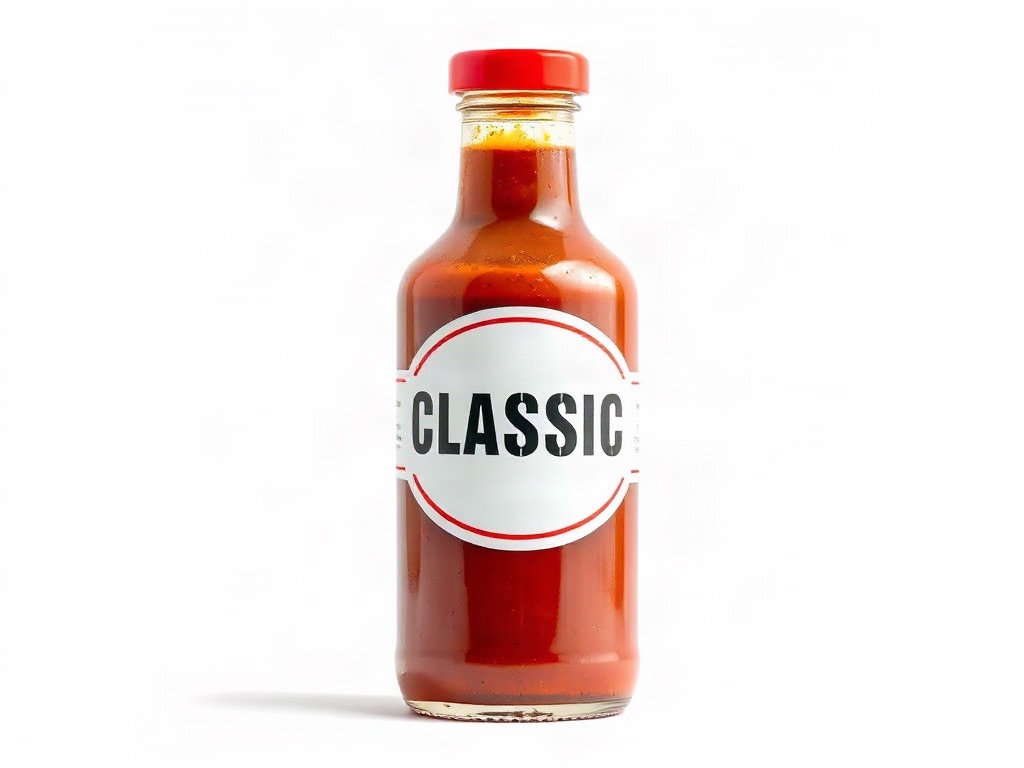
CLASSIC→CLASSIC
03
Click the line and retype it
Pick the numbered line you want to change and type the new words. You can retype up to six lines in one run. Keep the length similar to the original so the layout stays natural.
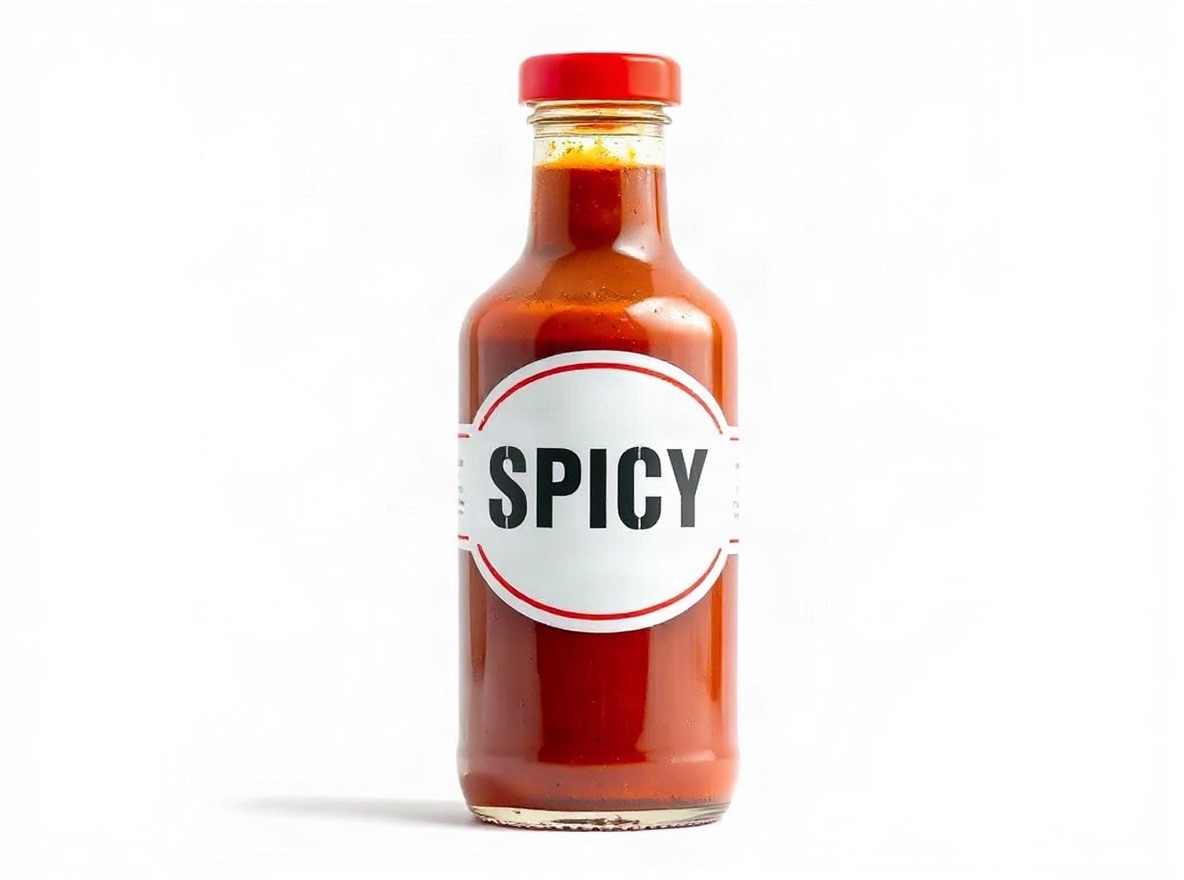
CLASSIC→SPICY
04
Generate and compare
Generate renders the new words in the original font, colour and texture — only that line changes. Drag the before/after divider to check it, then download or export at your marketplace size.
 Original photo: glass bottle of hot sauce with a bold printed label that reads CLASSIC in large letters on a white backgroundOriginalGenerated
- Edit:
- Label text CLASSIC → SPICY, same font and finish
- For:
- Fix packaging wording on pack shots without a reshoot
Tips for a clean edit
- Match the length: "CLASSIC" → "SPICY" keeps the label balanced; "CLASSIC" → "EXTRA HOT HABANERO" will be squeezed.
- Use the sharpest source you have. Re-saved, compressed images blur the letters the model needs to copy.
- Stylised, condensed and outlined fonts work well; handwriting and strongly warped 3D lettering may need a second run.
- For screenshots, upload the PNG straight from the device so UI text stays crisp.
- Retype only what has to change. Every untouched line stays pixel-identical.
Frequently asked questions
Can I edit text in an image without Photoshop?
Yes. The whole flow runs in the browser: upload, analyze, retype, download. There are no layers, masks or font menus.
Does it keep the original font?
The model references the letters you selected and renders the replacement to match font, weight, colour and surface texture. Only the wording changes.
Which images work: photos, JPGs, screenshots?
All of them. Printed text on packaging, posters and signs; flat JPG exports; phone and desktop screenshots. Handwriting and heavily warped 3D text are the hardest cases.
How much does it cost?
2 credits per image. Failed runs are refunded automatically; new accounts start with free credits.
Can I change several lines at once?
Yes — retype up to six lines and generate once. Each line is matched to its own original style.
Try it on your own image
2 credits per image. Free credits on sign-up, failed runs refunded.