Amazon main image: how to get a true pure-white background (RGB 255) without Photoshop
Amazon wants the main image on pure white, RGB 255, 255, 255, with the product filling 85% of the frame. Why a white sweep is never white enough, how to check the pixels, three free ways to fix it, and the edge faults that still get an image removed.
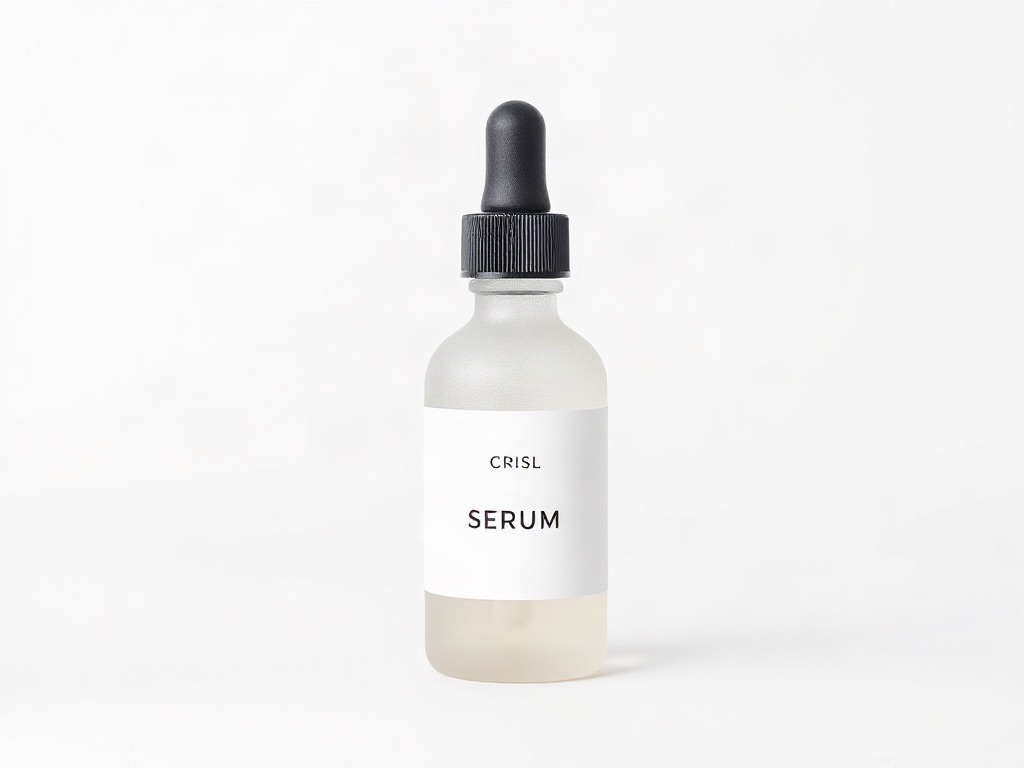
Amazon's main-image rule asks for a pure white background, RGB 255, 255, 255, not a background that merely looks white. A photo shot on a white sweep or in a lightbox almost never measures 255 straight out of the camera, so every main image needs a step that pushes the background to true white without eating the product's edges. This page covers what Amazon actually requires, how to check your file, three ways to fix it without Photoshop, and the edge faults that still get a main image removed.
Key takeaways
- The rule: main image on a pure white background (RGB 255, 255, 255), the whole product shown once, filling 85% of the frame, no text, logos, props or packaging, 1,000 px or more on the longest side for zoom, JPEG recommended, RGB colour mode.
- "Looks white" is not 255. A lit sweep reads 235–250 with a colour cast; a phone's auto white balance adds a tint. Measure, do not eyeball.
- Three free fixes: a levels/curves lift for a clean sweep, a cut-out with a white fill for everything else, or an automatic pure-white export from a tool that keeps the product pixels.
- Edges fail images too: halos, jagged cut-outs, dropped shadows and colour fringes around the product are separate rejection reasons from an off-white background.
- Never upscale. Amazon says not to artificially enlarge small images; start from the largest original.
What Amazon requires of the main image
From Amazon's product image requirements: the main image (variant code MAIN) must have a pure white background, RGB 255, 255, 255; the product must fill 85% of the image and be shown whole, once, with only the accessories that ship with it; no placeholder text, no packaging unless it is a feature, no mannequins of any kind (adult apparel goes on a standing model; accessories and multipacks are shot flat). Across all images: no customer reviews or star ratings, no "free shipping" claims, no Amazon badges such as "Amazon's Choice" or "Best Seller". Technical: JPEG, TIFF, PNG or non-animated GIF (JPEG recommended), longest side between 500 and 10,000 px, 1,000 px or more to enable zoom, 72 dpi or more, RGB preferred. Amazon's technical-file page adds: convert CMYK to RGB before upload, do not rely on ICC profiles, save JPEGs at maximum quality, flatten layers, and avoid re-saving a JPEG repeatedly.
Images that fail the technical rules cannot be uploaded; images that break the content rules can be removed, and a listing without a compliant main image can be suppressed from search.
Why a white sweep is never white enough
Light falls off across a backdrop. The patch directly under the key light may hit 250; the corners sit at 225–240 with a warm or cool cast from the lamp. Phone cameras then auto-expose to protect the product, pulling the whole frame down, and auto white balance adds a tint. The result looks white on a screen next to the product, and measures grey in the file. Amazon's check is on the pixel values, not on the impression.
Check the background before you edit
Open the image in any editor with a colour picker (GIMP, Photopea, Krita, Apple Preview's Digital Color Meter on macOS, or Paint 3D on Windows) and sample four spots: each corner and one point near the product's shadow side. All four should read 255, 255, 255. Anything under 250 will be visible as grey against Amazon's white page; a difference between channels (for example 255, 252, 247) is a colour cast. Check at 100% zoom around the product edge for a darker rim or a soft shadow; those are where fixes usually fail.
Three ways to get to 255 without Photoshop
1. Levels or curves lift (clean sweep, hard product). In GIMP or Photopea, open Levels and drag the white input point down until the lightest background corner clips to 255; then check the product's own highlights have not blown out. Works when the backdrop is evenly lit and the product has no white or very pale parts. Fails when the product is white, cream or glossy, because its highlights clip with the background.
2. Cut out and fill (everything else). Select the product (GIMP's Foreground Select, Photopea's Object Selection or the magic wand on a clean sweep), refine the edge by one or two pixels, invert the selection and fill the background with pure white. Keep or rebuild a faint contact shadow only if it is natural and does not read as a prop; a hard drop shadow is a common removal reason. This is the method for white products, hair-like edges and transparent glass, and it takes practice.
3. Automatic pure-white export (no editing). PicBarn's AI product photography tool detects and cuts out the product from the supplier shot, locks its pixels, and exports the Amazon main-image preset at 2,000 × 2,000 px on RGB 255 white with the product sized to the frame; the same project produces the lifestyle gallery images. Free credits cover the first product; check the edge at 100% as you would with any method.
Matching the method to the product
- Clothing and soft goods: fabric edges are soft and the garment is often pale. Cut out, not levels. For adult apparel the main image must be on a standing model; the white rule applies to the background around the model too.
- Small hard goods (bottles, electronics, tools): a levels lift on a clean sweep is usually enough; watch glossy highlights.
- Glass and transparent items: the background shows through the product, so a global lift tints the glass. Cut out, fill the outside, and leave the interior refraction alone.
- Large items and furniture: shot in a room, not a sweep. Cut out is the only route; keep the contact shadow minimal.
Re-check the export
Sample the four corners again after export, confirm the file is JPEG in RGB at maximum quality, longest side at least 1,000 px (2,000 is the practical standard), and zoom to 100% along the entire product outline looking for a light halo, a dark rim, jagged steps or colour fringing. Those edge faults are what reviewers and buyers see first; a background at 254 is invisible, a halo is not.
FAQ
Does the background really have to be exactly 255? Amazon specifies RGB 255, 255, 255. A pixel or two below is invisible on the page; a visible grey tint or a colour cast is what gets an image flagged. Measure the corners rather than guessing.
Can I leave a shadow on the main image? A faint natural contact shadow is common practice; props, reflections and hard drop shadows are not. When in doubt, remove it.
My product is white. How do I keep it from disappearing? Cut it out rather than lifting levels, keep its own shading intact, and let the natural contact shadow define the bottom edge.
What size should I export? 2,000 × 2,000 px JPEG is the practical standard; Amazon requires at least 1,000 px on the longest side for zoom and at most 10,000.
Can an AI tool make the main image? Yes if it keeps the product's own pixels and only replaces the background. An image where the product itself is regenerated is a rendering, which misrepresents the item.
Sources
- Amazon Seller Central, Product image requirements: pure white RGB 255, 85%, formats, 500–10,000 px, zoom, banned content, apparel and mannequin rules.
- Amazon Seller Central, Image file technical requirements: RGB vs CMYK, ICC profiles, JPEG quality, flattening.