How to change the colour of a product in a photo (every colourway from one shoot)
Recolour a shirt, a bag or a lid in an existing listing photo and keep the fabric, folds and light. Why hue shifts fail, what to type, and how to check the result.
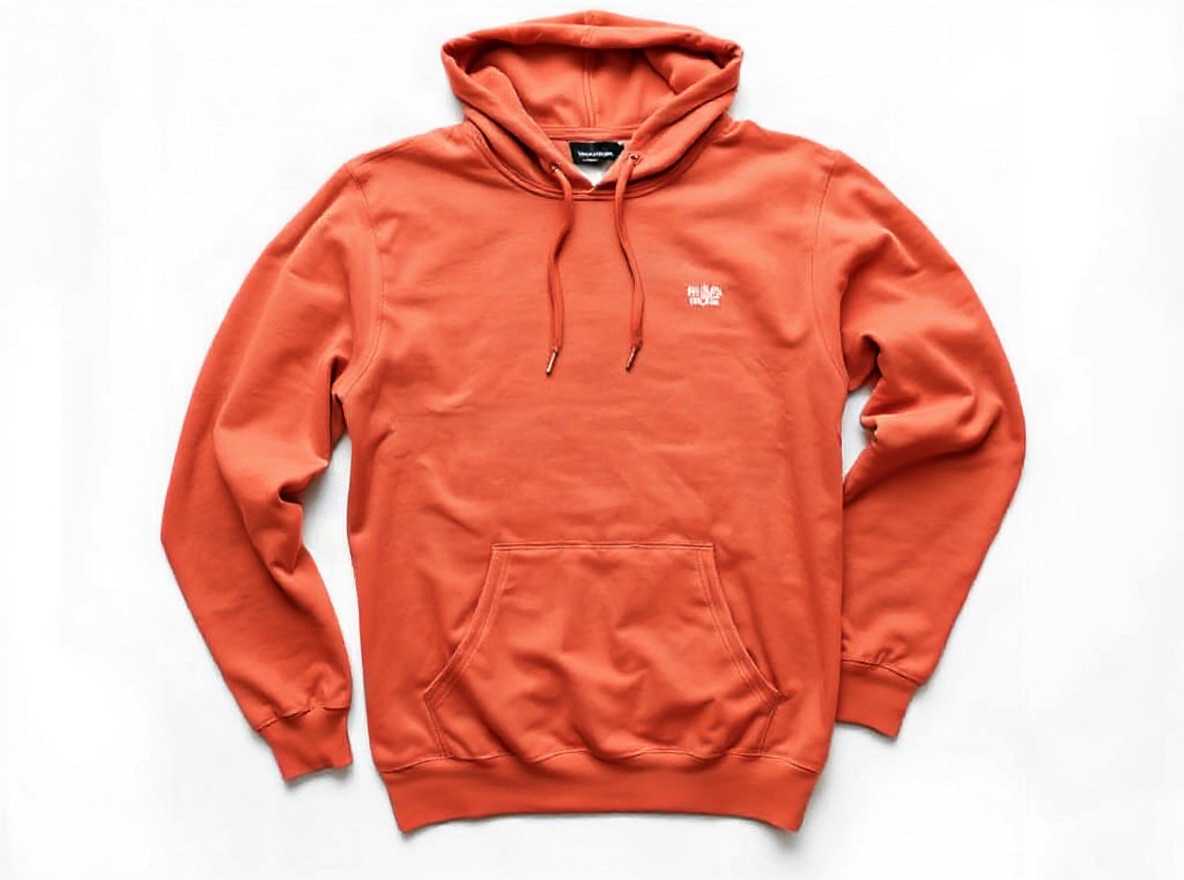
A SKU with six colourways is six photo shoots — or one shoot and five recolours. The second route only works if the recolour keeps what makes the photo believable: the weave, the folds, the highlight on the shoulder, the soft shadow under the hem. This is how to get that, and how to tell when you have not.
Why a hue shift looks wrong
The quick fix in any editor is Hue/Saturation on a selection. It fails in three predictable places:
- Shadows and highlights. A real terracotta hoodie has warm dark folds and pale orange highlights. A hue-shifted sage hoodie keeps sage's brightness curve with the new hue painted over it, so the shadows go muddy and the highlights look dusty.
- Edges. The selection has to be perfect around hair, zips, fringed seams and the printed logo. It never is on the first pass.
- Printed text and logos. They get shifted along with the fabric unless you mask them out by hand.
An image model that is told what to recolour and to what colour renders the colour under the original light instead of painting over it, and leaves the logo alone because it was told to.
The process
- Open recolor image (or change colour of clothes, same tool) and upload the photo. Flat lay, ghost mannequin or on-model all work.
- Say what to recolour. Be specific: "the hoodie", "the left shoe", "the bottle cap", "the background". On an on-model shot with layers, name the layer ("the jacket", not "the top").
- Pick the colour. Use the swatches or type a name. "Navy blue", "terracotta" and "heather grey" steer the engine better than a hex code; a hex is read as a hint, not a measured match.
- Generate 2 or 4 variations when the exact shade matters, then drag the compare slider across the seams and the logo before you download.
What to check before publishing
- Folds still read. The darkest fold and the brightest highlight should both still be there, in the new colour.
- Logo and label untouched. A white chest print stays white. If it did not, run again and add "keep the white printed logo white" to the target field.
- Nothing else moved. Background, hanger, model, other garments: identical. If they are not, the target was too vague.
What it cannot do (yet)
- One colour inside a pattern. A navy-and-cream striped tee recolours as a whole: ask for "the navy stripes" and both stripes shift. We tested three phrasings; the engine treats the stripe pattern as one piece. Solid garments, heathers and single-colour parts (a lid, a strap, a label background) are the sweet spot.
- Exact dye matching. The colour is rendered from its name under the photo's light, not measured. Keep a real swatch shot for colour-critical categories.
Where it fits in a listing workflow
- Photograph the hero colourway properly once.
- Recolour for the rest of the range; export each at the platform size from the same project.
- For apparel, run the recoloured flat lay through virtual try-on so every colourway also has an on-model image.
- Keep one real swatch photo in the gallery for colour-sensitive buyers; the recoloured images are for the listing, not for a dye-lot claim.
Costs 2 credits per image. Failed runs are refunded automatically.