How to edit text in a JPG without Photoshop
A JPG has no layers. Here is how to change the words in one anyway, keep the original font, and export it clean — in about two minutes.
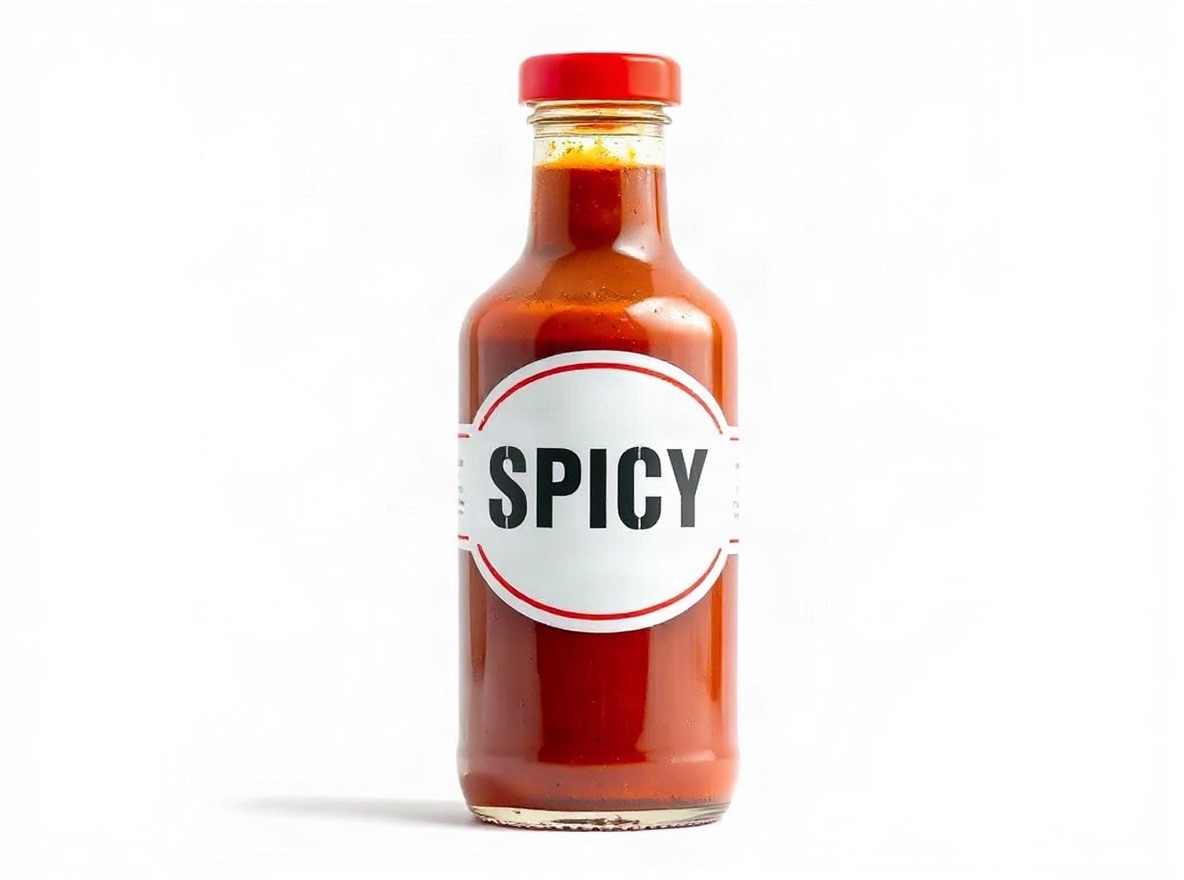
A JPG is a flat picture. The text in it is just pixels, so the usual answer — "open the layered file and retype" — does not apply. You either have the source file or you don't, and most sellers don't: the image came from a supplier, a designer who moved on, or a phone.
This guide shows the flat-image route: detect the line, retype it, let the AI rebuild the letters in the same font, download the JPG.
What you need
- The JPG (or PNG/WebP), ideally the largest version you have. Text at least ~12 px tall is the practical floor.
- The new wording. Keep it close to the original length; "CLASSIC" → "SPICY" sits naturally, "CLASSIC" → "EXTRA HOT HABANERO" gets squeezed.
Step 1 — Upload and analyze
Open the edit text in JPG tool and drop the file. Click Analyze. Every line of printed text is detected and numbered on the image, with the words it read listed next to it.
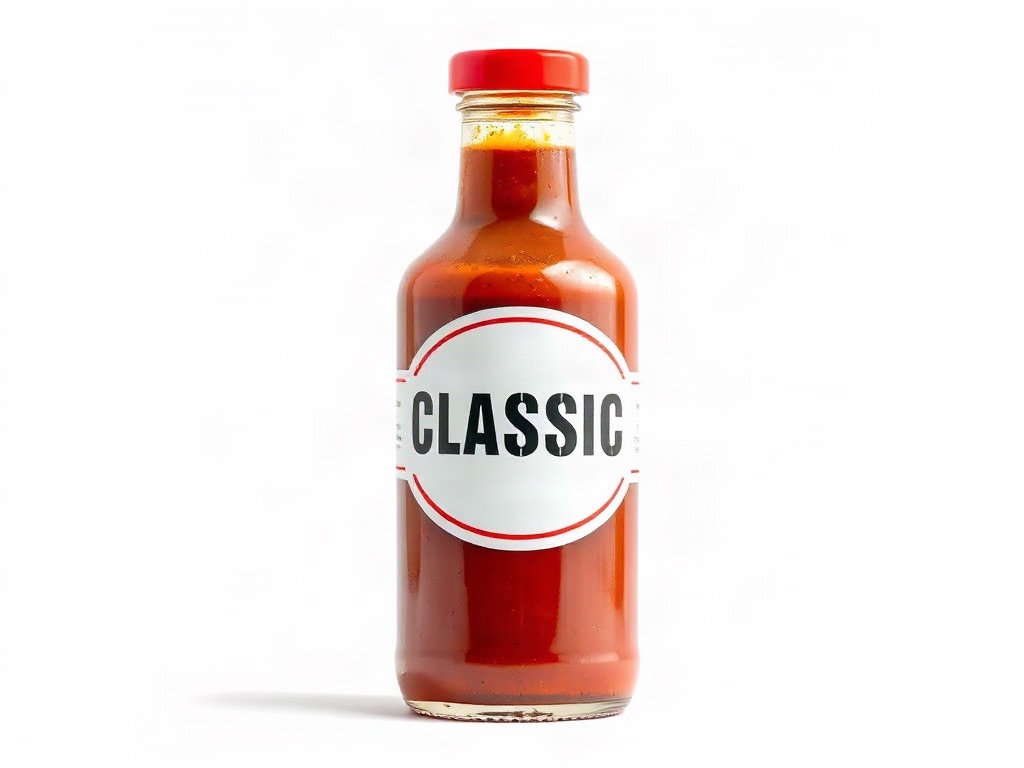
Step 2 — Click the line, type the new text
Select the numbered line you want to change and type the replacement. You can retype up to six lines in one run. Lines you leave alone stay pixel-identical.
Step 3 — Generate and compare
Generate renders the new words in the original font, colour and texture. Drag the before/after divider to check the edit, then download. Two credits per image; a failed run is refunded.
Why not just use Photoshop?
You can — if you have it, and the font, and an hour. The manual route is: select the old text, content-aware fill, identify the typeface, retype, warp to the perspective, match the grain. The AI route skips the font hunt and the warp because it references the letters already in the picture.
Tips
- Compression: JPEG artefacts around the text are preserved on purpose, so the new line doesn't look pasted on. Upload the original, not a re-saved copy.
- Stylised lettering: condensed, outlined and script fonts work; handwriting and heavily warped 3D text may need a second run.
- Several lines: change them in one run so the whole label is rendered together.
Ready? Edit text in a JPG →